How to Use Your Phone as a Keyboard for Windows
Whether a liquid spill killed your physical keyboard, your laptop lacks a numeric numpad, or you want to type from bed, you don't even need to download an app on your phone. Just scan a QR code and type into Windows immediately.
Updated September 2026 · Works on iPhone, Android & iPad · 100% Free · No App Download on Phone
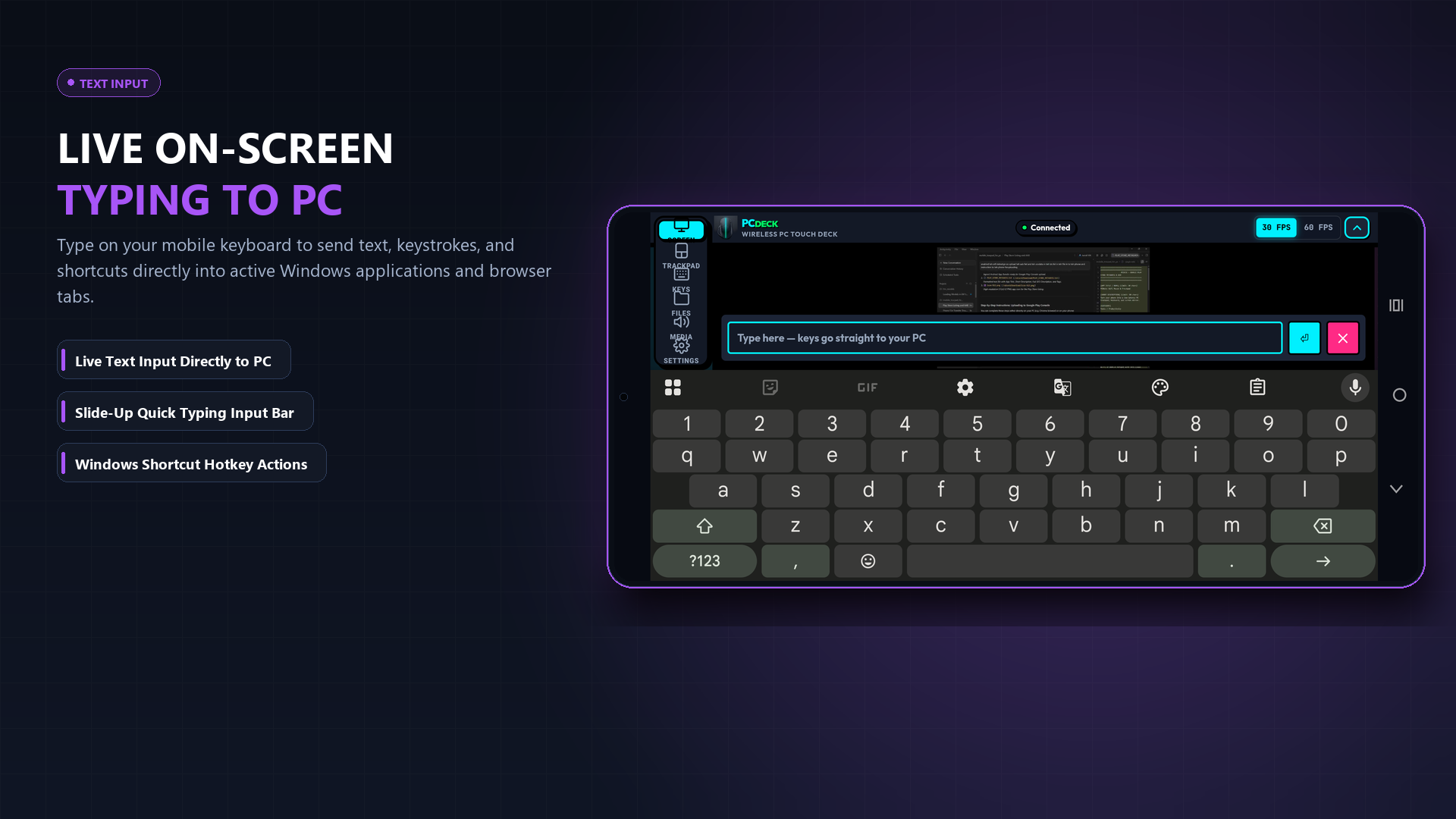
Yes, and you don't even need to download an app on your phone. PCDeck runs a lightweight local server on your PC. When you launch it, a QR code appears on your screen. Point your iPhone or Android camera at the QR code, tap the link, and your mobile web browser instantly opens a full wireless keyboard and numeric keypad that types directly into Windows over your local Wi-Fi.
The 3-Step Instant Setup (Ready in 20 Seconds)
No App Store downloads, no registration, and no Bluetooth pairing headaches:
Why turn your phone into a PC keyboard?
Having a phone-based keyboard available is an immediate lifesaver in several everyday situations:
- Hardware keyboard failure: Liquid spills, jammed keys, or a broken laptop ribbon cable leave you unable to type your Windows login PIN or password.
- Laptops without numeric keypads: Modern ultrabooks omit the 10-key numpad. PCDeck gives you a dedicated numpad on your phone for Excel spreadsheets, accounting software, and Blender hotkeys.
- Media center and couch PC control: Type search queries into Netflix, YouTube, or browser address bars on a TV-connected PC without lugging a clunky physical keyboard across the room.
- Voice-to-text dictation: Use your phone's voice recognition (Gboard, Siri, Samsung Voice) to dictate long emails, essays, or notes directly into Word, Notepad, or your browser on Windows.
- Never blocks your PC monitor: Windows' built-in On-Screen Keyboard covers up 40% of your monitor. Using your phone as a second screen keyboard keeps your PC monitor completely unobstructed.
Key layout and special input capabilities
PCDeck provides a comprehensive set of virtual keys designed specifically for Windows control:
| Input Feature | How It Works in Windows |
|---|---|
| Full QWERTY layout | Standard alphanumeric keys matching your phone's native keyboard layout, language, and emoji support. |
| Dedicated Numeric Keypad | Complete 0-9 numpad with arithmetic operators (+, -, *, /) and Enter for fast data entry. |
| Windows Modifier Keys | Toggle or hold Ctrl, Alt, Shift, and Win to execute system shortcuts like Ctrl+C or Alt+Tab. |
| Navigation & Edit Keys | Dedicated Esc, Tab, Home, End, Page Up, Page Down, and arrow keys. |
| Function Row (F1–F12) | Direct access to Windows function keys for refreshing browser pages (F5), renaming files (F2), or opening developer tools (F12). |
Windows Security Note
Due to Windows operating system security isolation (Secure Attention Sequence / SAS), user-mode software cannot inject Ctrl+Alt+Del. To open the Windows Task Manager directly without pressing those keys, use the shortcut Ctrl+Shift+Esc.
Two Ways to Connect: Browser vs. App
Instant Browser (Zero Phone Install)
Works on iPhone, iPad, Android & Mac. You don't have to download anything on your phone.
- Download and run PCDeck.exe on your PC (Free).
- Scan the on-screen QR code with your phone camera.
- Tap the link — your phone browser opens the keyboard & trackpad immediately!
Dedicated Android App (APK)
For Android users who want a permanent app icon on their home screen for everyday use.
- Download the lightweight PCDeck.apk (739 KB).
- Tap your PC in the auto-discovery list.
- Enjoy haptic feedback and instant auto-reconnect.
Using phone voice dictation on Windows
Windows voice typing can be clunky or require downloading online language packs. With PCDeck, you can use your phone's built-in microphone button (e.g. Google Voice Typing or Apple Siri Dictation). When you speak into your phone, the speech-to-text engine converts your speech to text and PCDeck types the resulting words directly into your active Windows document, email, or chat.
Get PCDeck — Free Wireless Keyboard & Mouse
Turn your iPhone or Android phone into an emergency keyboard, trackpad, screen viewer, and file transfer tool for Windows 10 and 11.
Windows 10 / 11 · Works on iPhone & Android · No account needed · 100% Local Wi-Fi