How to use a PC without a mouse
Your mouse or touchpad has stopped working and there is no spare in the house. Windows can be driven entirely from the keyboard — and there is a built-in feature that turns the numeric keypad into a pointer. Here is what works, in the order you need it.
Updated 25 August 2026 · Windows 10 and 11 · Shortcuts verified against Microsoft's documentation
Fastest emergency solution (Zero App Install)
Don't want to install an app? Just run PCDeck on your PC, scan the QR code with your phone camera, and control your PC directly inside your phone's web browser — no APK or app installation required! Works instantly on Android, iPhone, and iPad. See how it works ↓
How to Right-Click Without a Mouse in Windows (10 & 11)
If your physical mouse is dead, unpluggable, or broken, here are the 4 fastest ways to right-click right now:
| Method | Shortcut / Key | Instructions |
|---|---|---|
| 1. Universal Shortcut | Shift + F10 | Select the item using arrow keys or Tab, then press Shift + F10 (or Shift + Fn + F10 on compact laptops) to open the context menu. |
| 2. Physical Menu Key | Menu Key (≣ or ▤) | Press the dedicated Menu key located between the right Alt and right Ctrl keys. |
| 3. Windows Mouse Keys | - then 5 on Numpad | Enable with Left Alt + Left Shift + Num Lock. Press - (minus) to set button to Right-Click, then press 5 to click. |
| 4. Touchpad Gesture | Two-Finger Tap | Tap the laptop touchpad with two fingers simultaneously, or firmly press down the physical bottom-right corner of the trackpad. |
| 5. Instant Mobile Trackpad | Scan QR Code | Run PCDeck on your PC and scan the QR code with your phone camera. Tap the phone screen with two fingers to right-click with zero app installation. |
Start with focus: Tab, arrows, Enter
Everything below rests on one idea. Windows always has an element in focus — the button or field that would react if you pressed a key right now. A mouse moves focus by pointing. Without one, you move it by stepping.
| Keys | What it does |
|---|---|
| Tab | Move forward to the next control. Shift + Tab goes back. |
| ↑ ↓ ← → | Move within the thing that has focus — a list, a group of radio buttons, a page. |
| Enter | Activate what is focused. This is your left click. |
| Space | Tick a checkbox, or press a focused button. |
| F6 | Jump between the large regions of a window — sidebar, file list, address bar. Faster than tabbing thirty times. |
| Esc | Close the menu or dialog you are in. |
If you get lost, Esc then F6 is a reliable reset: close whatever popped up, then walk the window's regions one at a time.
Open anything without clicking it
You do not need the Start menu's tiles or a desktop icon. Press Win, type the first few letters of the program's name, and press Enter. Search takes focus automatically, so there is nothing to click first — this one habit replaces most of what a mouse did.
| Keys | What it does |
|---|---|
| Win, then type | Search and launch. Type chrome, press Enter. |
| Alt + Tab | Switch between open windows. Keep Alt held and press Tab again to keep going. |
| Win + Tab | Open Task view — a full-screen map of your windows you can walk with the arrow keys. |
| Win + D | Show and hide the desktop. |
| Win + E | Open File Explorer. |
| Win + R | Open the Run box. Type a program name and press Enter. |
| Win + X | The Quick Link menu — Device Manager, Terminal, Settings, Shut down. The same menu as right-clicking Start. |
| Win + I | Open Settings. |
| Alt + F4 | Close the active window. |
| Ctrl + Shift + Esc | Open Task Manager — for when something is frozen and that is why you are here. |
Right-click without a right button
Half of Windows lives in context menus: rename, copy, delete, properties, Open with. You can reach all of it.
Shift + F10 opens the context menu for whatever is focused. Many keyboards also have a dedicated Menu key — a small icon of a list, usually between the right Alt and right Ctrl — which does the same thing in one press. Once the menu is open, arrow down to the entry you want and press Enter.
File Explorer, keyboard only
| Keys | What it does |
|---|---|
| Just start typing | In a file list, typing jumps to the first item starting with those letters. |
| F2 | Rename the selected item. |
| Ctrl + A | Select everything in the window. |
| Shift + ↑ ↓ | Extend the selection to several files. |
| Ctrl + C / X / V | Copy, cut, paste — including whole files and folders. |
| Delete | Send to the Recycle Bin. |
| Alt + ↑ | Go up one folder level. |
| Alt + ← | Go back to the previous folder. |
| Ctrl + L | Jump to the address bar and type a path directly. |
Notice that copy and paste replace dragging. If you need to move a file into a folder, cut it and paste it there instead of trying to drag it — that is the keyboard-native way to do it, not a workaround.
Move the pointer with the numpad: Mouse Keys
Some things genuinely need a pointer. Windows has shipped a feature for exactly this since long before touchscreens existed, and it is still in Windows 11: Mouse Keys turns the numeric keypad into a mouse.
-
Press Left Alt + Left Shift + Num Lock
Use the Alt and Shift keys on the left side of the keyboard — the shortcut ignores the right-hand ones. Windows asks whether you want to turn Mouse Keys on; press Enter to confirm. The same shortcut turns it back off.
-
Make sure Num Lock is on
Mouse Keys can be configured to work only while Num Lock is on, and that is the usual default. If the pointer will not budge, press Num Lock once and try again.
-
Move: 8 up, 2 down, 4 left, 6 right
On the numeric keypad. 7 9 1 3 move diagonally. Hold a key to keep travelling; it accelerates as it goes, so short taps are for fine positioning and long holds cross the screen.
-
Pick the button before you click
/ selects the left mouse button, - selects the right, * selects both. The choice stays until you change it, so set it to left once and forget it.
-
Click with 5. Drag with 0 and the decimal point.
5 clicks the selected button. To drag: move onto the item, press 0 to hold the button down, move to the destination, then press . to release.
The speed and acceleration are adjustable. Press Win + U to open accessibility settings — on Windows 11 that is Settings → Accessibility → Mouse; on Windows 10 it is the Ease of Access Center, under Make the mouse easier to use. Turn the pointer speed up if crossing a large monitor feels like wading.
The catch
Mouse Keys needs a numeric keypad. Most laptops and every compact tenkeyless keyboard do not have one. Some laptops overlay a numpad on the letter keys behind an Fn lock; many no longer do. If you are on a laptop with no numpad, this section is not available to you — use your phone as a trackpad instead.
Where keyboard-only stops being enough
The shortcuts above will get you through an afternoon. They will not replace a mouse, and it is worth knowing where the wall is before you hit it:
- Anything aimed at a specific pixel. Resizing a window by its edge, dragging a slider to a precise value, selecting a region in an image editor. Mouse Keys can do these, at roughly a tenth of the speed.
- Drag and drop between windows. Rearranging a playlist, dropping an attachment onto an email, moving a layer.
- Web pages built without keyboard support. A custom dropdown or map that only responds to hover leaves Tab with nothing to land on.
- Games and creative software. Continuous aiming and drawing are pointer input by nature. There is no shortcut for them.
- No numpad, no Mouse Keys. On a laptop, the single best built-in option is simply unavailable.
Turn your phone into an instant trackpad — No APK required!
If there is any smartphone within reach (Android, iPhone, or iPad), you already have a wireless multi-touch trackpad — and you don't even need to install an app on your phone!
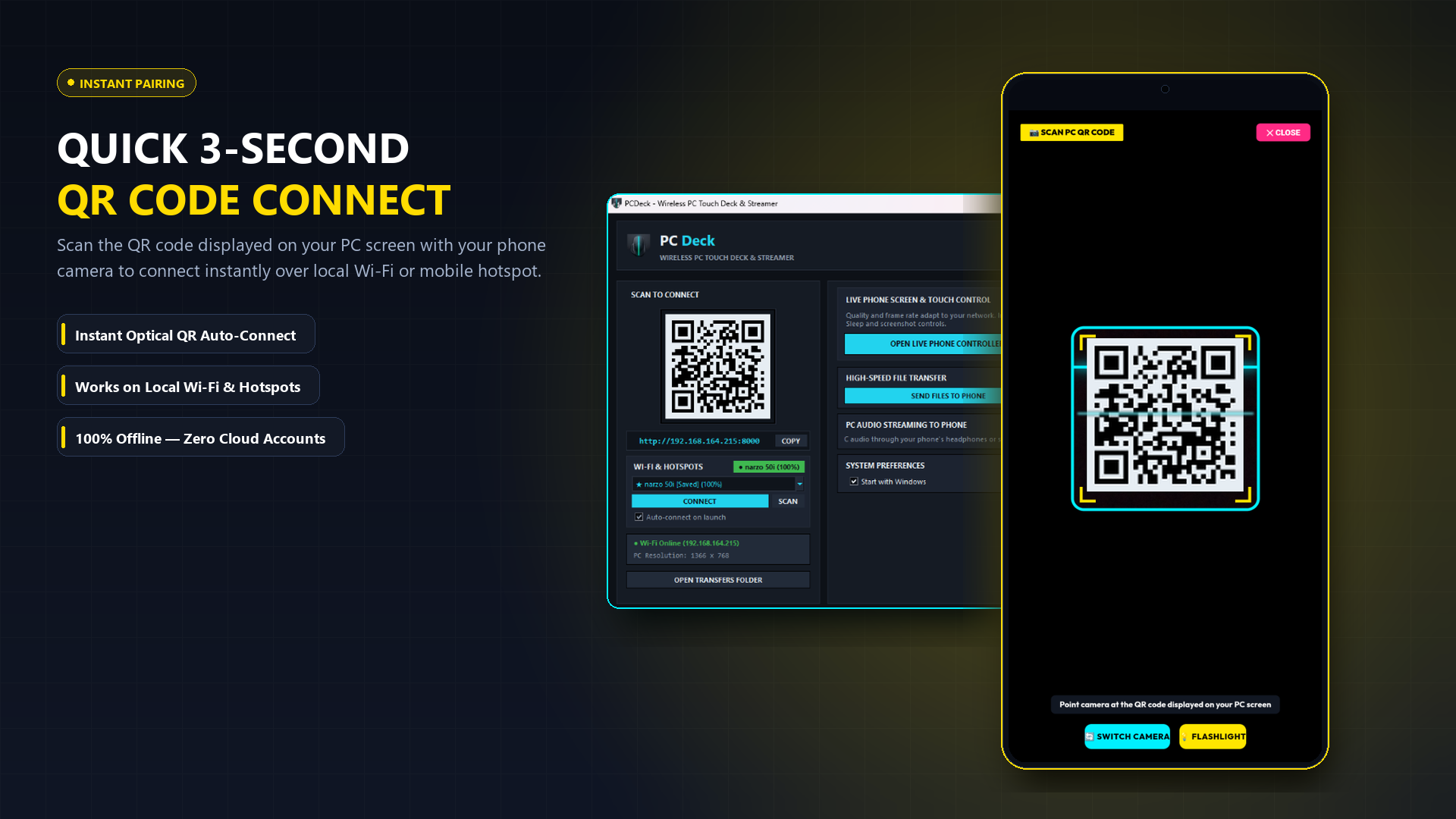
Simply start PCDeck on your PC. It immediately shows a QR code. Point your phone camera at the screen, tap the link, and your mobile browser instantly turns into a responsive trackpad with tap-to-click, two-finger scrolling, and keyboard input. Or install the optional APK if you prefer a dedicated app.
Everything runs 100% locally over Wi-Fi without internet or external servers.
Windows 10/11 & Linux · Zero phone install required (just scan QR code) · Free & Offline
How to launch it when you have no mouse at all
There is an obvious problem: downloading software normally takes a mouse. It does not have to. Here is the entire 60-second keyboard-only process:
-
Open your browser
Press Win, type chrome or edge or firefox, press Enter.
-
Go to the address bar
Ctrl + L selects the address bar. Type pcdeck.vercel.app and press Enter.
-
Reach the download
Press Tab until the Windows download link is focused, then press Enter. Or press Ctrl + F, type Windows, Esc, then Enter.
-
Run what you downloaded
Ctrl + J opens your browser downloads. Arrow to PCDeck.exe and press Enter. If Windows SmartScreen prompts, press Tab to More info, Enter, then Tab to Run anyway.
-
Scan QR Code on Phone (Zero Install!)
PCDeck opens and immediately displays a connection QR code on your PC screen. Open your normal phone camera (or swipe down from the top of your phone screen to tap the built-in Scan QR code shortcut). Point it at the screen and tap the link that appears. Your mobile browser opens instantly as a responsive trackpad with zero phone app installation needed!