How to use a PC without a keyboard
A dead keyboard blocks you earlier than a dead mouse does — usually at the password field, before Windows has even loaded. That has a fix, and it is the first thing on this page.
Updated 25 August 2026 · Windows 10 and 11 · Steps verified against Microsoft's documentation
Second screen typing
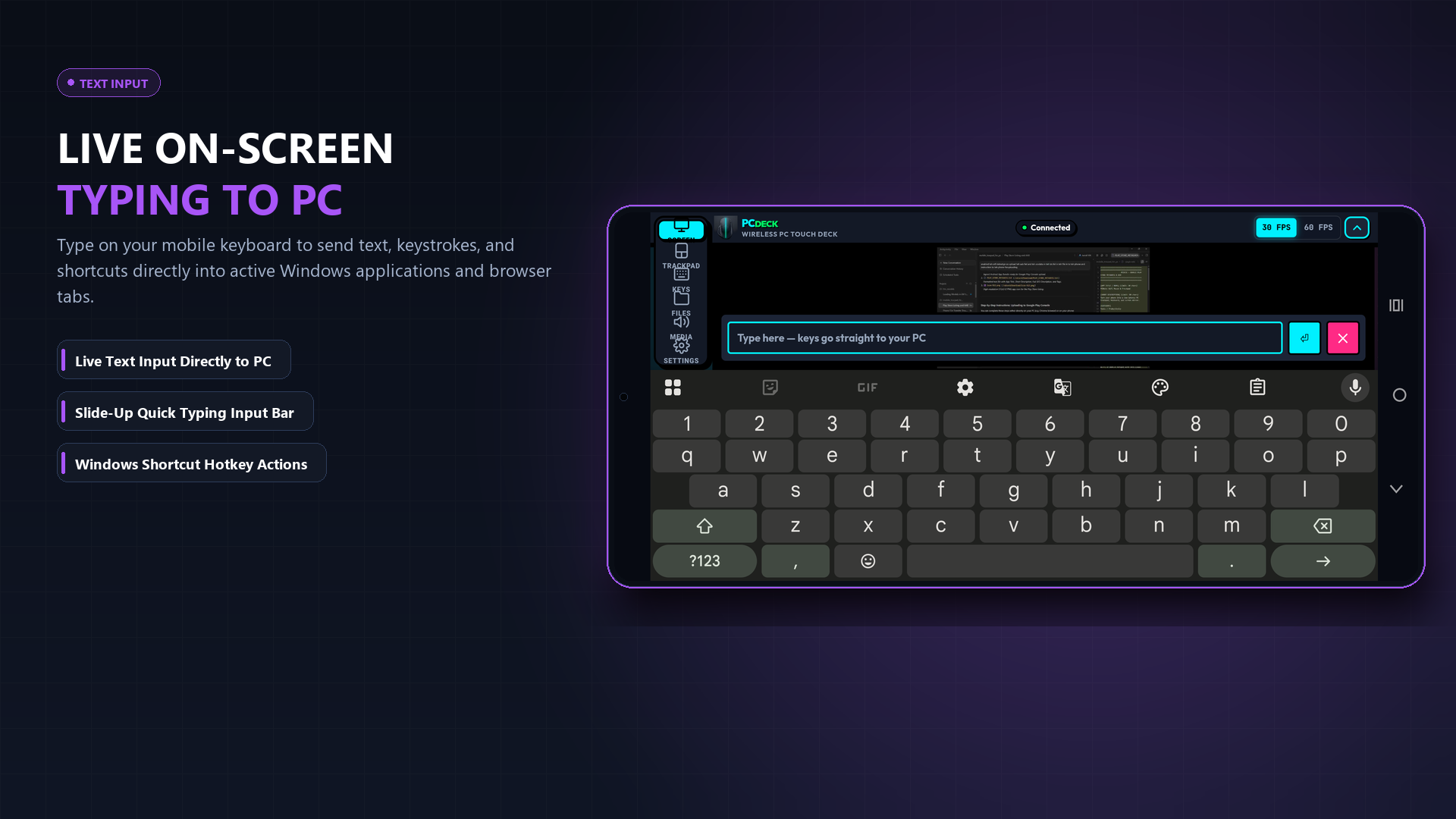
If the on-screen keyboard covers your document or clicking letter-by-letter is too slow, PCDeck puts a complete keyboard and numpad on your Android phone over local Wi-Fi. Jump to the phone keyboard setup or continue below for the built-in Windows options.
First: get past the sign-in screen
If you cannot type your password, nothing else on this page matters yet. Windows keeps an accessibility menu on the sign-in screen for exactly this, and it works before you are logged in.
-
Click the button in the lower-right corner
On Windows 11 it is labelled Accessibility; on Windows 10, Ease of Access. It sits next to the power button.
-
Choose On-Screen Keyboard
A clickable keyboard appears over the sign-in screen.
-
Click your password in
Click the password field first so it has focus, then click the characters. Shift and Caps are on the on-screen keyboard too — click Shift and it stays held for the next character.
If your PC signs in with Windows Hello — a face, a fingerprint or a PIN pad you can click — use that instead. It is faster and it sidesteps the problem entirely.
Inside Windows: the On-Screen Keyboard
Once you are logged in, the same keyboard is one shortcut away — assuming you have some working keys. Otherwise reach it through Settings with the mouse.
| Method | Steps |
|---|---|
| Win + Ctrl + O | Turns the On-Screen Keyboard on. Press it again to turn it off. |
| Settings, Windows 11 | Settings → Accessibility → Keyboard, then turn on On-Screen Keyboard. |
| Settings, Windows 10 | Settings → Ease of Access → Keyboard, then turn on the On-Screen Keyboard toggle. |
| Search | Click Start, type osk, open it. Works if the mouse is fine and the search box can be clicked. |
The On-Screen Keyboard is a real keyboard as far as Windows is concerned: modifier keys latch when you click them, so Ctrl then C copies, and Ctrl Alt Del works. It is not a touch keyboard — it is designed to be clicked with a pointer, which is precisely your situation.
Typing without pressing keys
Voice typing
Win + H opens voice typing: click into any text field, start it, and speak. It handles punctuation by name — say comma, full stop, new line. For longer stretches this is far quicker than clicking a keyboard letter by letter. It needs a microphone and, for the initial download of the speech model, an internet connection.
If you want to run the whole machine by voice rather than just dictate into a box, Windows 11 has Voice access under Settings → Accessibility → Speech — it takes commands like "open Chrome" and "click Save" as well as dictation.
Copy, paste and special characters with the mouse alone
- Right-click instead of Ctrl+C. Every context menu carries Cut, Copy, Paste, Rename and Delete. Nothing about clipboard work requires a keyboard.
- Emoji and symbols: Win + . opens the emoji panel, which also has symbols, currency signs and kaomoji — clickable, searchable.
- Accented and unusual characters: open Character Map from Start, find the character, copy it. This is how to type é or ° or → with no keyboard at all.
- Passwords you cannot remember clicking: if a password manager is installed, let it fill the field. Fewer characters clicked is fewer chances to mistype.
Where this runs out
Nothing on-screen exists before Windows starts. The BIOS or UEFI setup screen, the boot menu, a Press F2 to enter setup prompt, or a full-disk-encryption password — all of those run before Windows loads and need real keyboard hardware. If that is where you are stuck, you need a physical keyboard; a USB one from any shop will be detected without drivers.
It covers what you are typing into. The On-Screen Keyboard is a floating window that takes up the bottom third of the screen, and it lands on top of the thing you are writing in. You can drag it, but you are trading screen space for typing — typing on a second screen with PCDeck avoids this completely.
No rollover, no gaming. Clicking one key at a time cannot express W + Shift + Space held together, and games generally ignore synthetic key events anyway.
A full wireless keyboard on your phone — Zero App Install!
If you have any smartphone nearby (iPhone, Android, iPad), PCDeck lets you type on your PC using your phone's touch keyboard. Unlike Windows' on-screen keyboard, your phone is a separate screen, so it never blocks the document, browser, or game you are working in.
No phone download required: Simply run PCDeck on your computer, point your phone camera at the screen to scan the QR code, and type away. It includes a full QWERTY layout, numeric keypad, and modifier keys (Ctrl, Alt, Win, function keys).
Windows 10 / 11 · Works on iPhone & Android · 100% Free · Runs offline on local Wi-Fi
How to launch it when you have no keyboard
Because your mouse works, this is quick and easy:
-
Download PCDeck on your PC
Go to pcdeck.vercel.app with your mouse and click the Download for Windows button. Open the downloaded file.
-
Scan the QR code with your phone
A QR code appears on your PC screen. Open your normal phone camera (iPhone or Android), point it at the monitor, and tap the link that pops up.
-
Type comfortably with your thumbs
Your mobile web browser opens instantly. Tap the keyboard icon, and type directly into Windows at full speed!